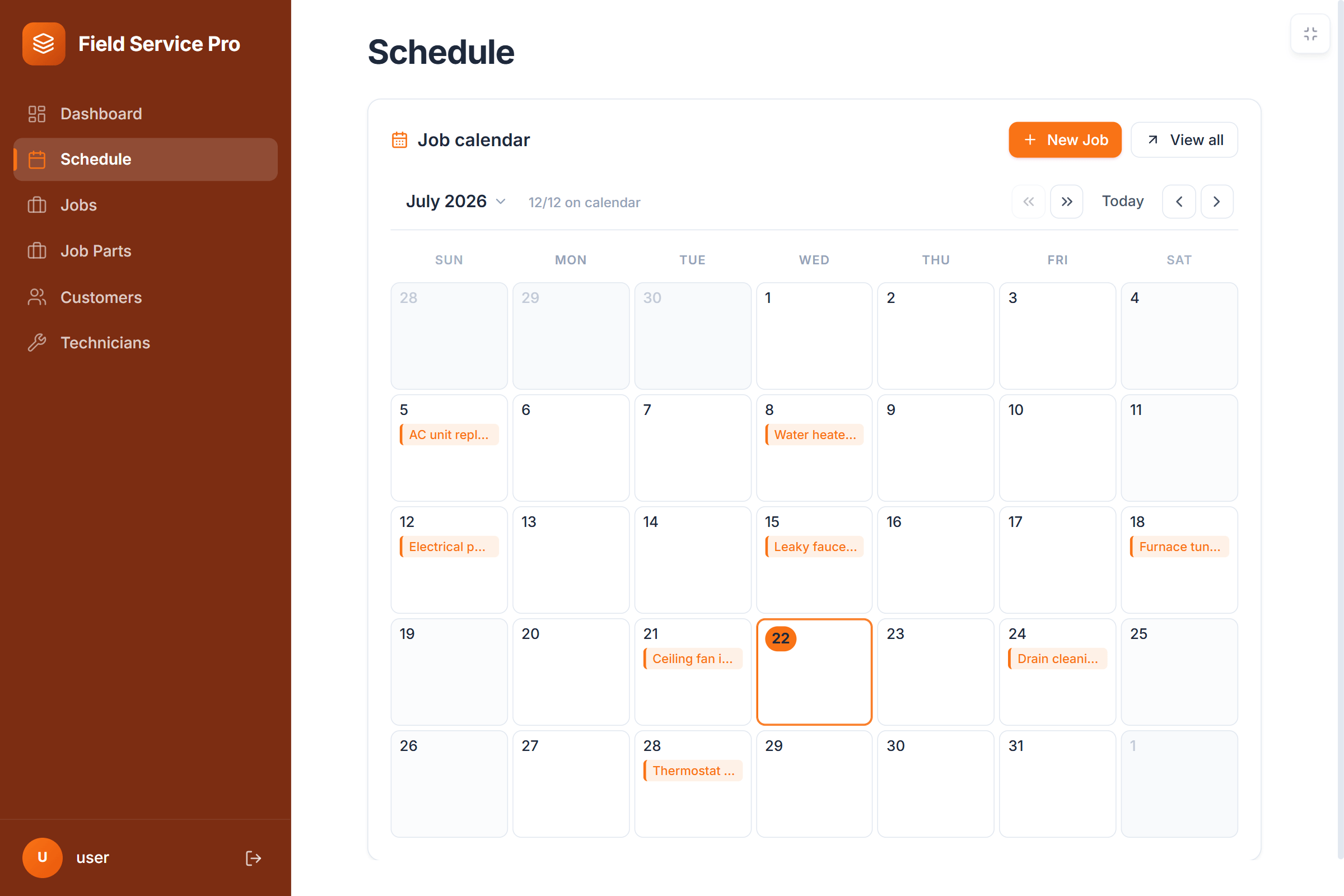
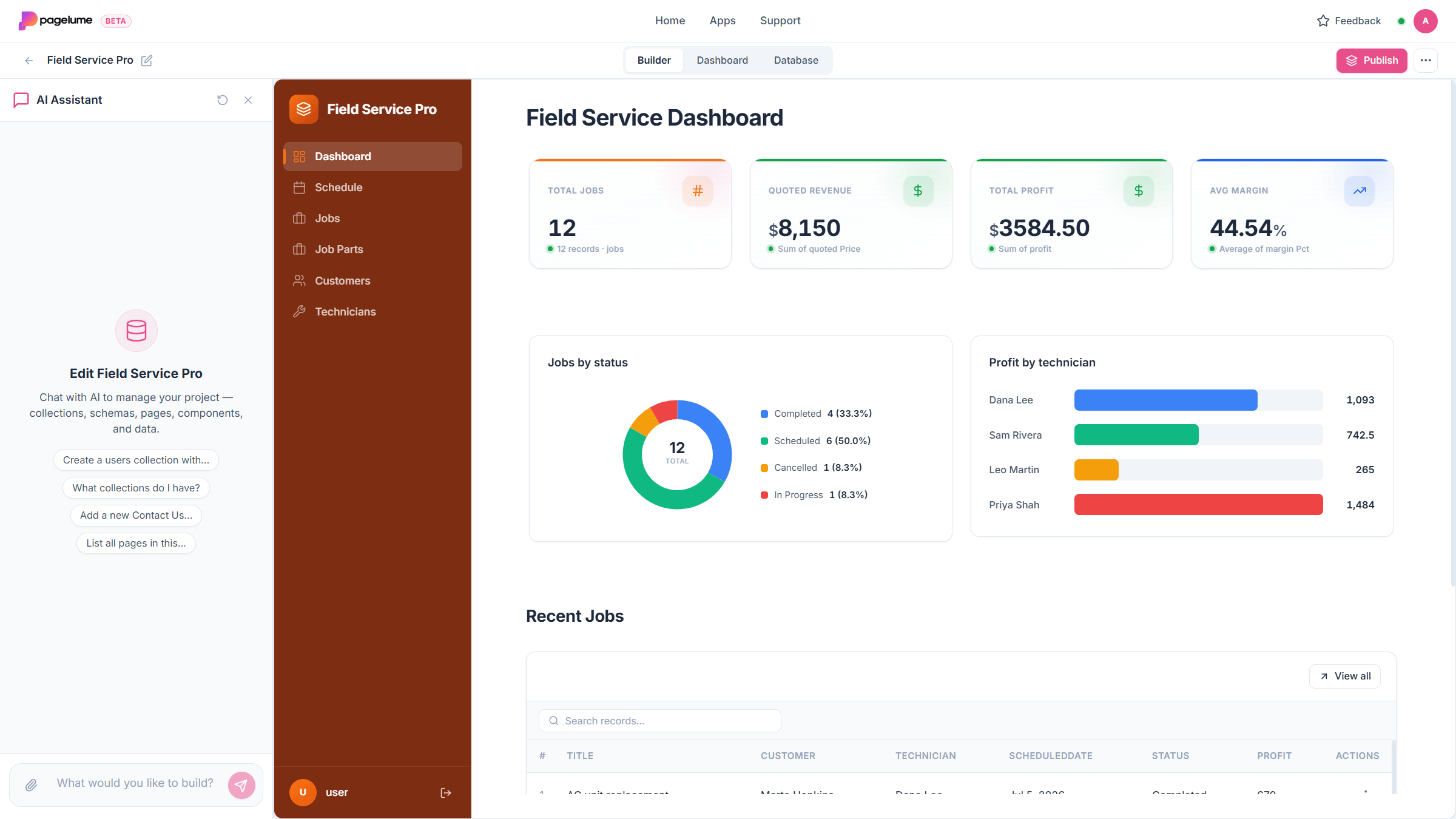
What you will have at the end
- Your columns become organized lists with the right field types, and your rows come along.
- A dashboard shows the totals you used to calculate by hand at the bottom of the sheet.
- Your team signs in with their own login instead of passing one file around.
Why the spreadsheet stops working
A spreadsheet is a great place to start and a bad place to stay. Two people edit the same row and one change disappears. A customer name is typed four slightly different ways, so the filter misses three of them. There is no login, so the whole file is shared or none of it is. And the totals at the bottom only tell you about the tab you are looking at.
An app fixes those four things without asking you to learn anything new. Each kind of thing (customers, jobs, payments) gets its own list. A job points at a real customer record instead of a typed name. Every person has a login and a role. The dashboard reads across all the lists at once.
What you need
- Your spreadsheet as an Excel file (.xlsx or .xls). A CSV export or a Word document (.docx) with a table also works.
- A free Pagelume account. Sign up with an email or a Google account.
- About ten minutes. The AI setup itself takes under two.
Step 1Tidy the sheet before you upload it
Pagelume reads the structure of your file to decide what lists and fields to create. A clean structure gives you a clean app, so spend five minutes here.
- One header row at the top of each tab, with a short name in every column. Delete title rows and merged cells above it.
- One kind of thing per tab. If customers and jobs share a tab, split them. The app will link them back together.
- Keep the same column in the same place on every row. A column that sometimes holds a date and sometimes a note becomes a text field.
- Type dates as dates and money as numbers. Formulas are fine to leave in; the values are what get read.
- Up to five tabs per file are read, and up to three files per upload. If you have more, start with the tabs you use every day.
Step 2Create the app with your file attached
One honest note. At this stage Pagelume uses your file to design the app, so what you see is your structure with example rows in it. Your real rows come in during the next step.
Open the create box
After you sign in you land on your home page with a box that asks what you keep track of. Drag your spreadsheet onto it, or use the attach button under the text.
Tell Lume what the file is for
One or two sentences is enough. Say what the business does and what the sheet tracks. Use your own words; this is what Lume names things after.
Create a management app from my spreadsheet. It tracks the cleaning jobs we do for our clients and what each one was paid. Keep my column names.
Wait for the first version
Lume reads the tab names, the header row, the row count and a few sample rows from each tab. From that it designs the lists, picks a field type for every column (date, number, dropdown, link to another list), builds a form for each list and lays out a first dashboard. It also fills the app with sample data so you can click around right away.
Step 3Bring your real rows in
Open the app and find the Lume chat. Attach the same spreadsheet there and ask for the rows to be added to the list that matches the tab. Lume reads up to about 200 rows per tab on each upload, so a long sheet goes in a few batches. Name the tab and the list so there is no guessing.
Ask for one tab at a time
Start with the list the others depend on, usually customers, then the lists that point at it. That way a job can be linked to the right customer as it comes in.
Add every row from the Clients tab to the Clients list. Skip blank rows.
Check a few records
Open two or three records and compare them with the sheet. Dates, money and dropdown values are the ones that most often need a nudge. If something is off, say so in plain words and Lume fixes the records, with a one-click revert if you change your mind.
The Paid column came in as text. Make it a yes/no field and set it from the values in the sheet.
Step 4Fix what a spreadsheet could never do
This is where the app starts paying you back. Each of these takes one sentence to Lume, or a minute by hand in the field settings. Hand edits never use AI credits.
Turn free text into a dropdown
Status, type and category columns usually hold the same few words typed inconsistently. A dropdown ends that.
Make Status a dropdown with the options Quoted, Booked, Done and Paid, and fix the existing values to match.
Link lists together
A customer name typed on every job becomes a link to the customer record. Click the customer and you see all their jobs.
On the Jobs list, replace the Client text field with a link to the Clients list, matching on the name.
Make the important fields required
Nobody can save a job without a date or a client anymore.
Step 5Add the overview you never had
The sum at the bottom of a tab only covers that tab. A dashboard reads across all your lists and updates itself as people add records. Ask for the numbers you check every week.
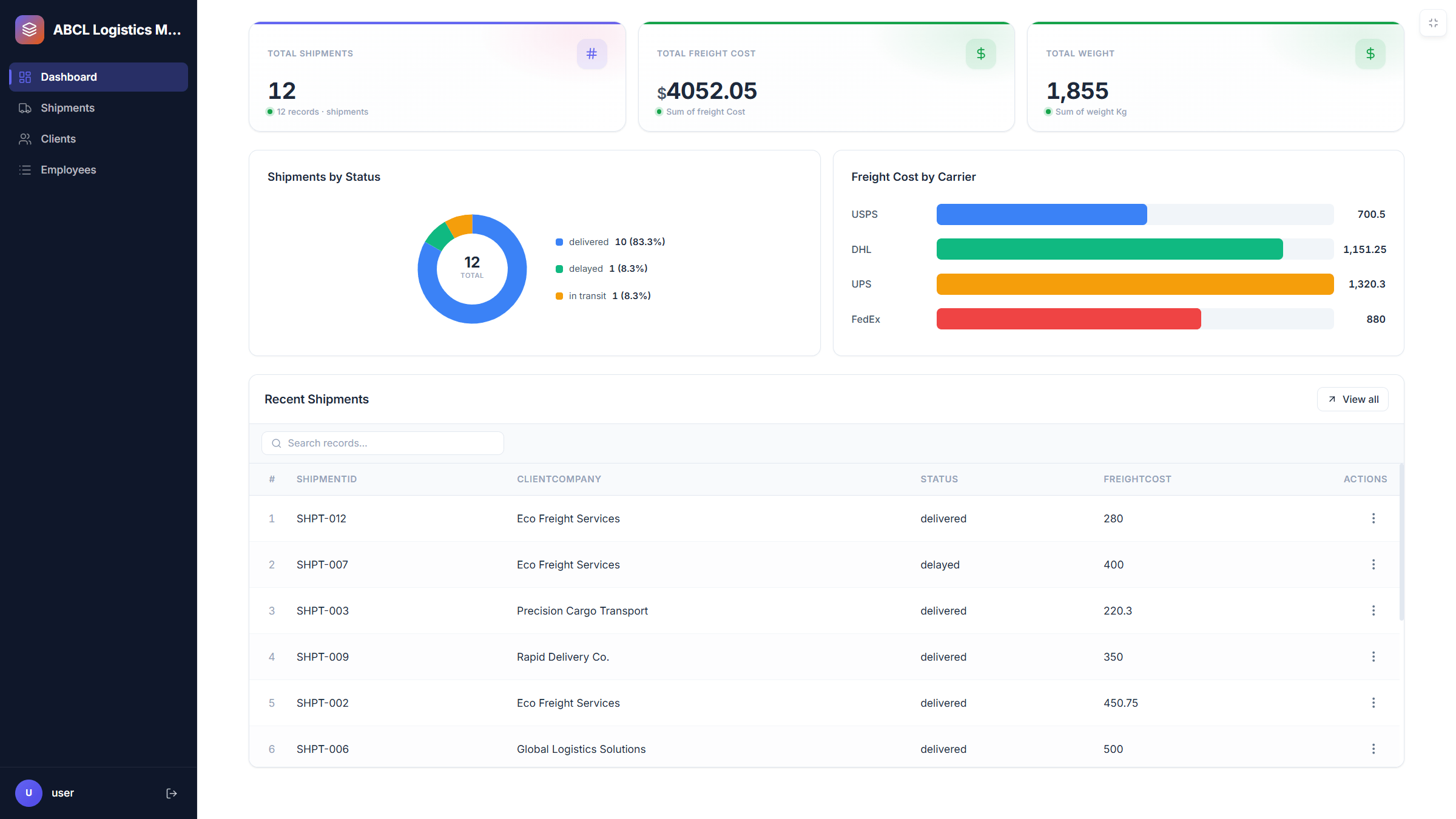
Add the numbers
KPI cards show a count, a total or an average. Say which list, which field and which filter.
On the dashboard, add KPI cards for jobs booked this month, total unpaid amount, and the number of clients.
Add a chart
Bar, line, pie and donut charts are available. A monthly bar chart of income is the one most people ask for first.
Step 6Invite your team and retire the shared file
Open Settings in your app and send invites by email. Each person gets a role: Admin can manage users and settings, Editor can add and change records but cannot delete, Viewer can only look. Then publish the app at its own web address and send the link. People open it on a phone or a laptop and sign in with their own login.
Nothing is locked in. Any table can be exported to CSV or PDF, a record can be downloaded as a PDF, and the whole app can be backed up or its code downloaded. Keep the old spreadsheet as an archive and stop editing it.
Common questions
Does Pagelume keep my spreadsheet formulas?
The values in formula cells are read, the formulas themselves are not. Ask Lume to recreate a total as a calculated field on the record or as a KPI card on the dashboard. Totals that used to live at the bottom of a tab usually belong on the dashboard.
What file types can I upload?
Excel files (.xlsx and .xls), CSV files and Word documents (.docx) when you create an app. Up to three files at a time, and up to five tabs per spreadsheet are read.
Do all my rows get imported automatically?
Creating the app uses your file to design the structure and fills it with sample data. To bring your real rows in, attach the file in the Lume chat inside the app and ask for a tab to be added to a list. About 200 rows per tab per upload are read, so large sheets go in batches.
Can I still use Excel for some things?
Yes. Any table in your app exports to CSV, so you can open it in Excel or Google Sheets for a one-off analysis. The app stays the single place where records are edited.
What does it cost?
The free plan includes 100 AI credits every month with no credit card. Credits are spent when Lume builds or changes the app or answers questions inside it. Editing by hand, adding records and inviting people never use credits.
Is my data safe?
Everyone signs in with their own login and gets a role you choose. Your app is private until you publish it, and even then only people with a login can add or change records. You can export or download everything at any time.